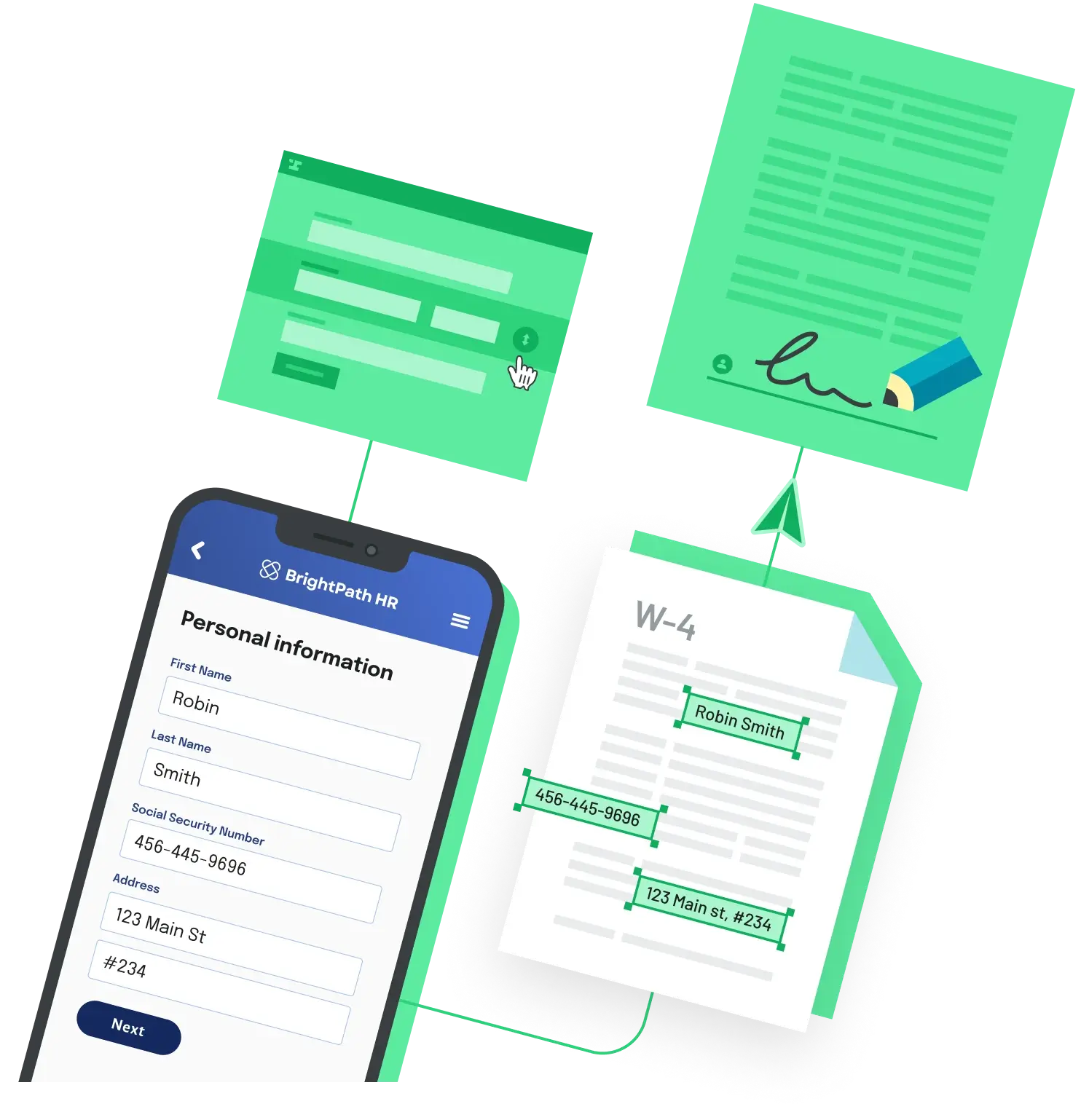
The usual setup: a customer, partner, or prior carrier sends you a PDF, and someone on your team retypes its contents into a different form. Automating that is less about the fill step, which is the easy part, and more about getting trustworthy values out of the incoming document. Treat it as four stages: extract, map, validate, fill.
Step 1: Figure out what kind of PDF is arriving
The extraction method depends on the input, and many pipelines receive all three of these kinds:
Fillable PDFs (AcroForm). The values already live in named form fields. You can read them directly with a PDF library, with no OCR and no guessing. This is the most reliable case by far, so if you control the incoming form, make it fillable.
Digital PDFs without fields. The text is selectable but not structured. You can extract the text and parse it with anchors (for example, the line after "Policy Number") or by position on the page. This works until the sender changes the layout, so plan to maintain one parser per source form.
Scans and photos. There is no text layer, so you need OCR plus something that understands which label goes with which value. Managed document AI services do this: Amazon Textract's AnalyzeDocument with the FORMS feature returns key-value pairs, and Google's Document AI Form Parser returns form fields with a confidence score for each name and value.
Step 2: Map to a schema you own
Do not wire source fields straight to target fields. The incoming form calls it applicant_dob, the outgoing form calls it Date of Birth, and the next source you onboard will call it something else. Define one internal record (name, date of birth, policy number, and so on), write one mapping per source into that record, and one mapping from that record to each target form. Adding a new source then means writing one mapping, not rewiring every target.
Normalization belongs here too: date formats, phone numbers, name order, and checkboxes whose "checked" value differs from one form to the next.
Step 3: Validate before you fill
Extraction errors are cheap to catch before the fill and expensive after the outgoing form has been sent or signed. At minimum, fail loudly on missing required fields. For OCR output, also route any field below your confidence threshold to a person for review instead of filling it silently, and add cross-field checks such as an effective date that falls after the date of birth.
Step 4: Fill the outgoing form
For the fillable-to-fillable case, the whole pipeline fits in a few lines. This uses pypdf to read the incoming fields, check that the required ones are present, and write them into the target form under its own field names:
from pypdf import PdfReader, PdfWriter

# Incoming field name -> outgoing field name
FIELD_MAP = {
    "applicant_name": "Insured Name",
    "applicant_dob": "Date of Birth",
    "policy_no": "Policy Number",
}

source = PdfReader("incoming.pdf")
values = {k: v for k, v in (source.get_form_text_fields() or {}).items() if v}

missing = [k for k in FIELD_MAP if k not in values]
if missing:
    raise ValueError(f"Incoming form is missing: {missing}")

writer = PdfWriter(clone_from="target_form.pdf")
target_values = {FIELD_MAP[k]: values[k] for k in FIELD_MAP}
for page in writer.pages:
    writer.update_page_form_field_values(page, target_values, auto_regenerate=False)
writer.write("filled.pdf")
Two caveats. get_form_text_fields() returns text fields only, so read checkboxes and radio buttons with get_fields() and translate their values explicitly. And if the outgoing form is a flat PDF with no fields, you need to draw text at fixed coordinates instead, which is more brittle and worth avoiding if a fillable version of the form exists.
If you only receive fillable PDFs, the script above plus a mapping table may be all you need. The cost rises with scans, many source layouts, and many target forms, because you end up running OCR, a review queue, and a library of fill templates. That is when a managed pipeline starts to make sense. Anvil is one option that covers both ends: its OCR Service extracts data from uploaded PDFs and maps it to your field aliases, and its PDF filling API fills PDF templates with that data over API.
Back to All Questions