TL;DR
- Anvil acts as the document layer an AI agent or application calls after it has collected and validated the data. Anvil fills an approved PDF template or generates a PDF through a separate document-generation path.
- For template filling, you approve a PDF and configure its fields before the agent requests a completed document.
- Your application chooses whether to fill an approved template or generate a document. It also sets review checkpoints for requests that need human approval.
- After document creation, your application can route it for e-signature and deliver the output to the requester.
- This guide covers the implementation path. The separate guide, How to Automate Paperwork with AI, provides the broader conceptual overview.
Where a document API fits
Companies typically use code-based PDF libraries, HTML-to-PDF rendering, or approved PDF templates. The right approach depends on whether the document has a variable layout or must preserve a controlled form.
Approach | Best fit | Main tradeoff |
|---|---|---|
PDF libraries | Documents built directly in application code | Layout changes require code changes. |
HTML-to-PDF | Documents with variable content or web-style layouts | Print rendering needs testing. |
Approved PDF templates | Standardized forms and controlled language | Each template version needs field mapping and review. |
A document API can execute the template or generation path your application selects. The agent may propose a document and collect inputs, but your application must validate the data and authorize the selected path before making the API call.
Where Anvil sits in an AI paperwork workflow
An AI agent can propose a document type, but your application should decide which type is permitted and what data reaches Anvil. The agent can collect details and propose a document type. Your application then checks those details against trusted records and required fields before selecting an approved template or a generation path.
 The application, not the agent, decides whether a request reaches Anvil and which path it takes.
Anvil’s document APIs handle the execution step. For template filling, Anvil uses a configured PDF template and the field values your application sends to produce a completed PDF. If the document needs signatures, your application can route it through Anvil’s e-signature tools after applying its approval rules. The requesting application remains responsible for giving the finished document to the right person.
A successful PDF call does not establish that its contents are correct or authorized. Anvil does not check values against your source of truth, interpret your business rules, or decide whether a document needs human approval. If source records require extraction, your application must validate the extracted values before building the payload. Your application can reject uncertain inputs before it sends them to Anvil.
Turning existing paperwork into reusable templates
Anvil can turn an approved PDF into a template your application fills with structured data. During template setup, a developer or operations owner uploads the PDF and configures its fields. If Anvil’s Document AI is available for that workflow, they can use its AI Field Finding and Smart Labeling to propose field locations and labels. A person should review those suggestions against the document, since a mislabeled field can put a correct value in the wrong place.
Your application needs stable field keys even when a new version of the PDF moves or renames a field. Configure the template fields to match the identifiers your application will send. Before implementation, check the relevant Anvil API documentation for the supported field identifiers and request format. For example, your application could keep sending an employeeName value while the team replaces the underlying offer letter template. Review the mapping before approving the replacement so the same key still fills the intended field.
Template onboarding happens when you first approve a document or update it, not whenever an agent requests a PDF. At request time, your application selects the approved template and supplies validated values. The agent does not need to detect fields or invent a new mapping for each request.
Collecting and validating data before it reaches Anvil
Your application should assemble a structured payload before calling Anvil. It can collect values from the requester, an authorized system such as an HR database, or an agent extracting details from the request. Record each value’s source before building the Anvil payload so your application can reject an inferred salary and use one confirmed in an authorized record.
Validate the payload against the selected template’s field schema. Check required fields, data types, permitted values, and relationships such as a start date that must follow an offer date. Reject unknown fields rather than passing them through. If an offer letter lacks a salary, ask for the missing value or route the request for review. Do not let the agent supply a plausible number to complete the PDF. Anvil fills documents with the values it receives, but it cannot establish whether those values came from an authorized source.
Check permissions before your application retrieves or sends sensitive data. A requester who can draft an offer letter may not have permission to see compensation details or send the letter on behalf of the company. Send Anvil only the fields the chosen document needs, and withhold personal identifiers or health information unless the document requires them and the requester is authorized to use them.
Choosing between filling a template and generating a new document
Your application should choose the document path before it calls Anvil. Match the request against an approved template catalog using a document type, template version, and required fields. If an approved template fits and the validated payload supplies its required fields, call Anvil to fill it. The agent can propose a document type, but application code should enforce the approved path for that type.
Generate a new document when no approved template fits and your policy permits generation for that document type. For example, an offer letter that matches your approved format should use the offer letter template. A one-off explanatory letter may need generation, but the application should still check who requested it and whether it needs review. A missing salary field in an offer letter is not a reason to switch to generation. Return the request for correction instead.
Using generation for documents that have approved templates can change required language or formatting across requests. Keeping those documents on the template path makes each output follow the version your application selected.
Worked example: an agent-initiated offer letter request
An HR user asks an agent to prepare an offer letter for Maya Chen, an analyst starting October 5, 2026. The agent extracts the candidate name, role, and start date, then asks the application to retrieve compensation and employer details from authorized HR records. The agent does not fill in a salary based on an earlier conversation or a plausible estimate.
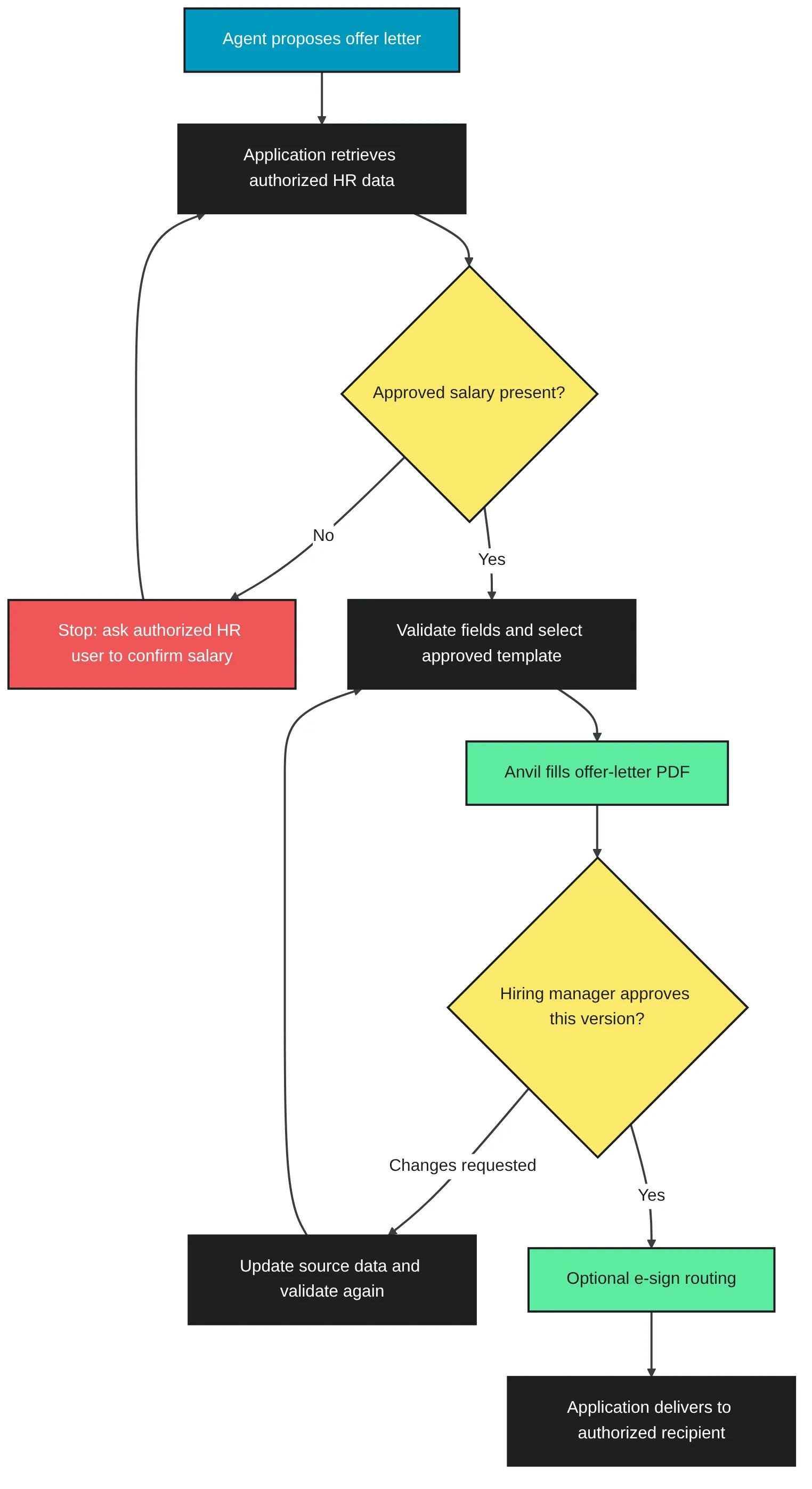 Missing data stops the request; it never triggers a guessed value.
The application assembles a structured payload with Maya’s name, job title, start date, approved annual salary of $85,000, employer name, and work location. For example, the application could validate this internal object before translating its fields into a documented Anvil request:
{
  "candidateName": "Maya Chen",
  "jobTitle": "Analyst",
  "startDate": "2026-10-05",
  "annualSalaryUsd": 85000,
  "employerName": "Example Employer",
  "workLocation": "Example Location"
}
These are illustrative application fields, not Anvil API parameters. Before making a document call, the application checks that each required value exists, matches its expected type, comes from an approved source, and falls within the requester’s permissions.
Suppose the HR record has no approved salary. Validation stops the request before Anvil receives a payload, and the application tells the HR user which field needs confirmation. The agent can resume after an authorized person supplies the value. A missing field must not trigger a guessed value or a partially filled offer letter.
Once validation passes, the application selects the approved offer-letter PDF template for Maya’s employer and location. During template setup, mapped fields connect that PDF to the application’s stable offer-letter schema. The application sends the validated values to Anvil to fill the selected template rather than asking the agent to invent a new letter layout. Before implementing this step, consult the Anvil API documentation for the fill operation, authentication, template identifier, field format, and response handling. The JSON above is an internal application object, not a runnable Anvil request.
When the fill operation succeeds, the application associates the returned document or authorized retrieval reference with Maya’s request. It then makes the PDF available to authorized HR users in the requesting interface for review. If Anvil reports a field-mapping or validation error, the application records the failure and asks for a correction. A temporary service failure may warrant a controlled retry, but a bad payload should never be retried unchanged.
Review, approval, and e-signature routing
Your application must decide whether a document needs human approval before it goes to a signer. Anvil fills or generates the PDF you request, but it does not determine your approval policy. For an offer letter, your application might send the completed PDF to an authorized hiring manager for review. A missing approval should block the next step, not prompt the agent to proceed.
The reviewer should approve the exact document the recipient will sign. If the reviewer changes a salary or start date, your application should validate the revised data and produce a new PDF before requesting approval again. Keep the approval decision tied to that document version so a later edit cannot pass under an earlier approval.
After approval, your application can route the filled or generated document to Anvil’s Etch e-sign service when signatures are required. E-sign is an optional step after document creation, not a substitute for internal review. Require an authorized person to approve sensitive documents before the application sends them for signature. Your application should control who can approve, who can sign, and when either action may occur.
Delivering, storing, and handling exceptions
After Anvil produces a PDF, your application should associate the output with the original request and return either the file or an authorized way to retrieve it. Keep document access behind your application’s permission checks. Do not treat possession of a URL or request ID as permission to access the PDF.
Choose where to store the PDF based on your retention requirements. If you store a copy, restrict access to people who need it, set a deletion schedule, and avoid putting SSNs or health information in filenames, logs, or error messages. A user who can start an agent task should not automatically gain access to every document the task produces.
Retry temporary failures, such as a network timeout, with a limit and increasing delays. A timed-out call may have created a document even if your application received no response. Check your own request record and any documented Anvil status or retrieval mechanism before resubmitting. Record the outcome and a request identifier so you can investigate duplicates; do not assume that a retry is safe unless the API documents an idempotency mechanism.
Do not silently retry missing fields, invalid values, or denied access. Return those errors to the requesting application so it can ask for corrected data or stop the task. If document creation succeeds but delivery fails, retain the authorized output for a delivery retry rather than generating another PDF.
What Anvil handles versus what your application must build
Anvil handles document execution after your application chooses a path and supplies validated data. Your application remains responsible for the decisions around each call.
Stage | Anvil | Your application |
|---|---|---|
Preparation | Hosts configured PDF templates for filling. | Configures template fields, collects source data, and decides which templates are approved for use. |
Creation | Fills an approved template or generates a new document from the supplied data. | Interprets the request, selects the document path, and validates the payload. |
Completion | Produces the output file and supports optional Etch e-sign. | Controls permissions, human approval, delivery, and retries. |
Conclusion
For an agent-initiated PDF, let the agent propose the document and collect inputs. Your application should validate those inputs, select an allowed template or generation path, and call Anvil for document creation. Return the resulting PDF only through an authorized review or delivery path.