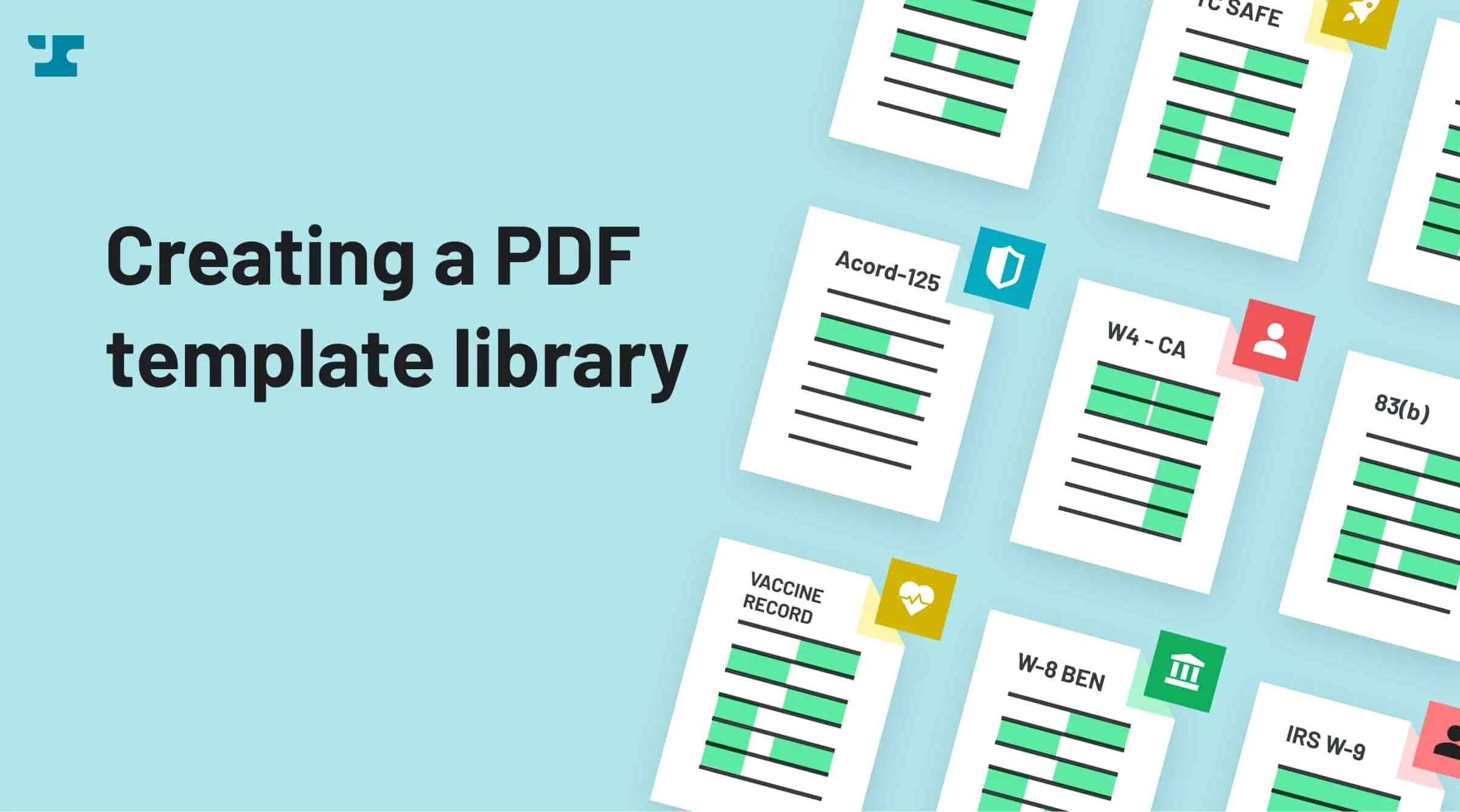
Before you build anything else on Anvil, templatize your documents. Well-templatized documents save you work downstream, and a single template can be reused across PDF filling, Etch e-sign, and Workflows.
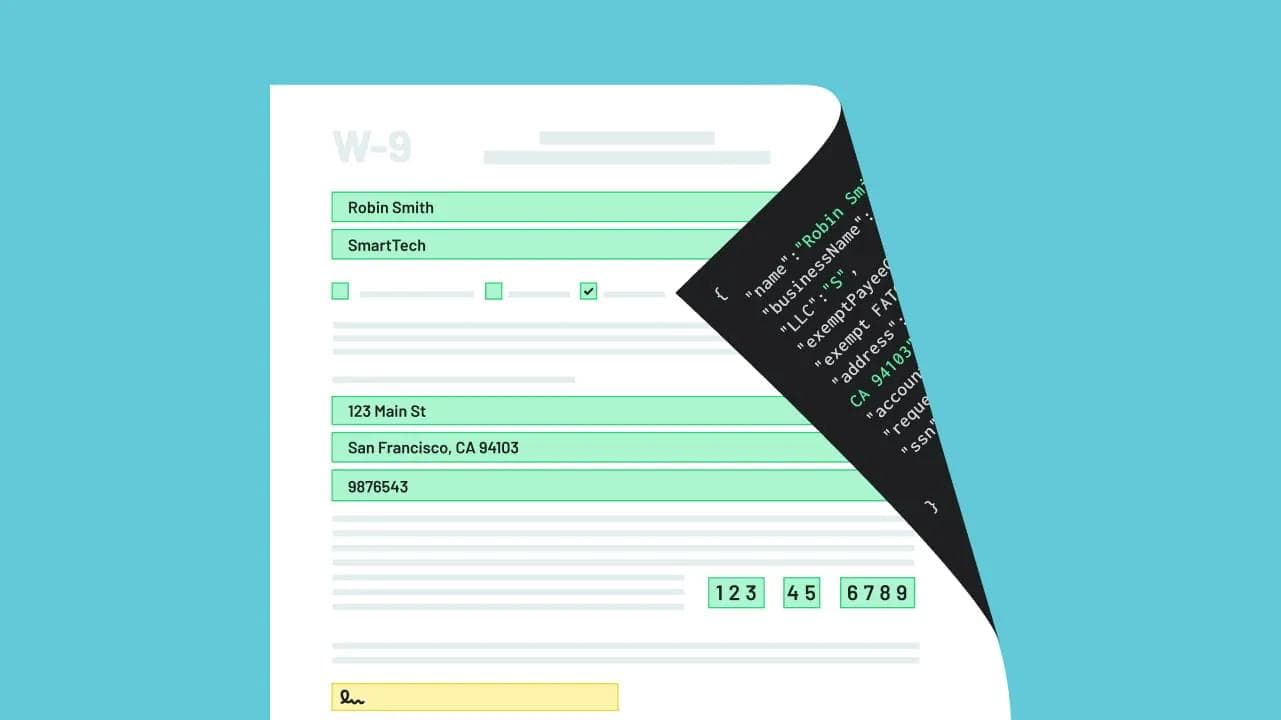
A PDF template (called a Cast in the API) holds the configuration for a single PDF file. It defines the location of fields on the page, the type of each field (e.g. date, SSN, US address), and the ID you use to fill it. Once a document is a template, you can fill it as many times as you need with different data each time.
This article covers building a library of templates, by hand or programmatically, and using Document AI to tag them to your own schema.
Why build a template library
- Fill in a single request. POST JSON to a template and Anvil responds with the filled PDF. See Filling a PDF template.
- Reuse everywhere. One template works across PDF filling, Etch packets, and Workflows. You never tag the same document twice.
- Collect data once. Structured data captured for one document can fill any other template that shares the same field names.
- Keep documents current. When a form changes (say, the year at the top of a W-4), replace the underlying PDF and keep all your existing fields.
- Version controlled. Every edit is saved to a draft that you publish as a new version. Earlier versions stay in the template's version history, and you can fill or test against a specific version with the
versionNumberparameter.
Two ways to build templates
You can create and maintain templates either way, and mix the two freely:
- In the UI. Upload a PDF in the document template editor. Anvil detects fields for you, and you adjust them by hand. This is also where you do the review pass on any template, however it was created.
- Programmatically. Use the
createCastmutation to upload a PDF and have Document AI tag it. This is the way to bulk-import an existing document set, or to let your own users turn their uploads into templates. See Programmatically create PDF templates below.
Field aliases
Each field on a template is referenced by a unique ID when you fill it. By default Anvil generates these IDs, but you'll usually want to set your own. A field alias is the ID you choose for a field, ideally one that matches the column name in your own system.
Set a field's alias to employee.name, and you fill it by sending { "employee.name": "Robin Jones" }. Aliases also let you combine fields: give two fields the same alias, and a single value fills both. For more, see Field IDs.
Bring your own schema, or use the one we generate
When Document AI tags a document, it has to name and type every field it finds. You have two options:
- Use the schema Anvil generates. Let Document AI pick sensible names and field types. Good when you don't have an existing data model to match, or you're prototyping.
- Bring your own schema. Hand Anvil your own field aliases (your database column names, your types), and the AI maps the fields it finds onto your schema. The resulting template fills directly from your existing data, with no remapping layer, and stays consistent across every document in your library.
Bringing your own schema is the higher-leverage path for any team maintaining more than a handful of templates. It's covered under the Document AI and schema support section.
Programmatically create PDF templates
The createCast mutation uploads a PDF and returns a new template. It's the programmatic entry point to your library: use it to import an existing document set, or to let your own users turn their uploads into templates.
createCast always produces a draft. Nothing goes live until you publish it with publishCast, which gives you a natural place to insert a review step (see Keep a human in the loop).
The arguments you'll reach for most:
file(Upload!) The PDF to templatize. Accepts a{ url, filename }object or a base64 buffer.title(String) Display title for the template.isTemplate(Boolean) Default istrue.detectFields(Boolean) Basic field detection. Default istrue.detectBoxesAdvanced(Boolean) AI box finding: locates fields, including on flat PDFs with no form fields. Implicitly setsdetectFieldstotrue. Default isfalse.advancedDetectFields(Boolean) AI label finding: names and types the detected fields. Implicitly setsdetectFieldstotrue. Default isfalse. Required when usingaliasIds.allowedAliasIds([String]) The set of field aliases the AI is allowed to assign.aliasIds(JSON) Your schema: maps each alias to aname,description, andtypeso the AI tags fields to your data model. Works withadvancedDetectFields: true. See Document AI and schema support.
For the full argument and response shapes, see the createCast reference.
Example
This call uploads the IRS W-4, runs AI box finding and label finding, and tags the result against a supplied schema.
mutation createCast(
  $organizationEid: String,
  $title: String,
  $file: Upload!,
  $isTemplate: Boolean,
  $allowedAliasIds: [String],
  $detectFields: Boolean,
  $advancedDetectFields: Boolean,
  $detectBoxesAdvanced: Boolean,
  $aliasIds: JSON
) {
  createCast(
    organizationEid: $organizationEid,
    title: $title,
    file: $file,
    isTemplate: $isTemplate,
    allowedAliasIds: $allowedAliasIds,
    detectFields: $detectFields,
    advancedDetectFields: $advancedDetectFields,
    detectBoxesAdvanced: $detectBoxesAdvanced,
    aliasIds: $aliasIds
  ) {
    eid
    name
    title
    isTemplate
    allowedAliasIds
    fieldInfo
    hasBeenPublished
    hasUnpublishedChanges
    createdAt
  }
}
Supply the variables:
{
  "title": "createCast w4",
  "advancedDetectFields": true,
  "detectBoxesAdvanced": true,
  "allowedAliasIds": [
    "employee.name",
    "employee.address",
    "employee.ssn",
    "employee.filing.status"
  ],
  "aliasIds": {
    "employee.name": {
      "name": "employee.name",
      "description": "Full name of the employee. Can include first, middle, and last name",
      "type": "fullName"
    },
    "employee.address": {
      "name": "ACME Employee Address",
      "description": "Employee address can contain street, city, state, zip, and country",
      "type": "usAddress"
    }
  },
  "file": {
    "url": "https://www.irs.gov/pub/irs-pdf/fw4.pdf",
    "filename": "w4.pdf"
  }
}
A few notes on this call:
- The
fileargument also accepts a base64 buffer ({ data, mimetype, filename }). See thecreateCastreference for that shape. - The mutation returns an unpublished draft. Publish it with
publishCast, or route it through review first. aliasIdsonly takes effect withadvancedDetectFields: true. See Document AI and schema support for what each property does.
Keep a human in the loop
Document AI is highly accurate, but for any template you'll fill at scale, we recommend a review pass before it goes live. createCast leaves the template as an unpublished draft so you can do exactly this. Some common patterns:
- Review and correct fields in the UI before publishing: relabel a field, change a type, or move a box. See Add and remove fields.
- Bulk-edit documents with many similar fields (arrays, repeated rows) using the multi-select tool to rename, retype, or align many fields at once.
- Apply corrections programmatically with
updateCast, then publish. - Update an existing template instead of rebuilding it when the source form changes: replace the underlying PDF and your fields are preserved.
Updating a template only affects that template. Anything already built from it (a Workflow or an Etch packet you created earlier) won't pick up the change. Those keep pointing at the version they were made from. To roll out an update downstream, rebuild or re-create from the new template version.
Document AI and schema support
Document AI does two distinct jobs when it tags a PDF. Understanding the split is the key to controlling your output.
Box finding vs. label finding
- Box finding (
detectBoxesAdvanced: true) figures out where the fillable regions are on the page. Because it works from the lines and boxes on the document rather than an existing form layer, it can templatize flat PDFs that have no built-in form fields, as well as scanned documents. - Label finding (
advancedDetectFields: true) figures out what each field is: its name and its type (a date, an SSN, a US address, and so on).
You can run either on its own, but they're most useful together: find the boxes, then label them. Schema support hooks into the label finding step, which is why aliasIds requires advancedDetectFields: true.
Schema support
By default, label finding lets the AI choose names and types for you. Schema support lets you supply your own instead. Pass an aliasIds object where each key is one of your field aliases and each value describes it:
name- A human-readable label for the field, shown in the template editor.description- Plain-language guidance that helps the AI match the right field on the document to this alias.type- The Anvil field type to apply (e.g.fullName,usAddress,ssn,date). Sets formatting and validation.
When the AI finds a field that matches one of your aliases, it assigns your alias as that field's ID and applies your type. The payoff: the published template fills directly from your existing data (send { "employee.name": "Robin Jones" }) with no mapping layer in between, and every template in your library speaks the same names and types.
Use allowedAliasIds alongside aliasIds to constrain the AI to exactly the set of aliases you expect on the document.
This is also what powers self-serve template creation. If you embed the PDF template builder, your users can upload their own documents and have them auto-mapped to your schema. See auto-mapping PDF fields with AI.
Example
Here is the aliasIds block from the createCast example above:
{
  "allowedAliasIds": [
    "employee.name",
    "employee.address",
    "employee.ssn",
    "employee.filing.status"
  ],
  "aliasIds": {
    "employee.name": {
      "name": "employee.name",
      "description": "Full name of the employee. Can include first, middle, and last name",
      "type": "fullName"
    },
    "employee.address": {
      "name": "ACME Employee Address",
      "description": "Employee address can contain street, city, state, zip, and country",
      "type": "usAddress"
    }
  }
}
The AI is told to look for an employee name and an employee address, what each one means, and which type to apply, so the W-4 it tags comes out already speaking your schema.
Using schema support over MCP
Anvil also exposes its API through an MCP server, so you can drive template creation from an AI assistant or agent instead of writing the GraphQL by hand. The server lives at:
https://mcp.useanvil.comConnect it in any MCP-compatible client, and the assistant can call the same operations described here (including creating a template from a PDF and tagging it against your schema) using your stored field aliases as the aliasIds input. It's a natural fit for a "turn this document into a template that matches our data model" task: point the agent at a PDF and your schema, have it call createCast with advanced detection on, and review the resulting draft before publishing.
As with every other path, MCP-created templates land as unpublished drafts. Keep the review step (see Keep a human in the loop section) before you call publishCast.