Getting Started
If you are already working with an existing document, you can directly copy and paste your table into the Anvil Document Editor.
If you prefer, you can also start from scratch. To do this:
- Click the table icon
- Drag your cursor over the cells until the measurements are correct
- Click to insert the table
Styling tables
After a table has been added to your template, all table specific actions like border styling, row and column count, alignment, padding, etc. can be managed through the same table icon. Simply select your table first then click the table icon to reveal the table editing menu.
To apply the same styling changes to multiple cells in bulk:
- Hover your cursor over the table
- The cursor will change to a + symbol
- Click and drag your cursor to select multiple cells. Cell borders are blue when selected.
- Optionally hold down shift and click to select cells
- After selecting desired cells, click the table icon to open the table editing menu
- Apply the relevant styling options
Additional tips
Tables created from scratch will have a header row by default. If you’d like to disable this, you can select the entire row and choose `Header row` in the table editor menu to turn the cells into a normal row.
Make your table borderless if you’d still like to see the table cells without them appearing in the resulting document. The table borders will appear as dotted lines within the editor, making it easier to manage your tables.
 Borderless tables in the dynamic template editor
 Borderless tables filled
If you choose to delete your table the change is instantaneous. Immediately use the undo arrow button in the right side panel to restore mistakenly deleted tables.
Leverage columns with different alignment options to mimic columns in a document.
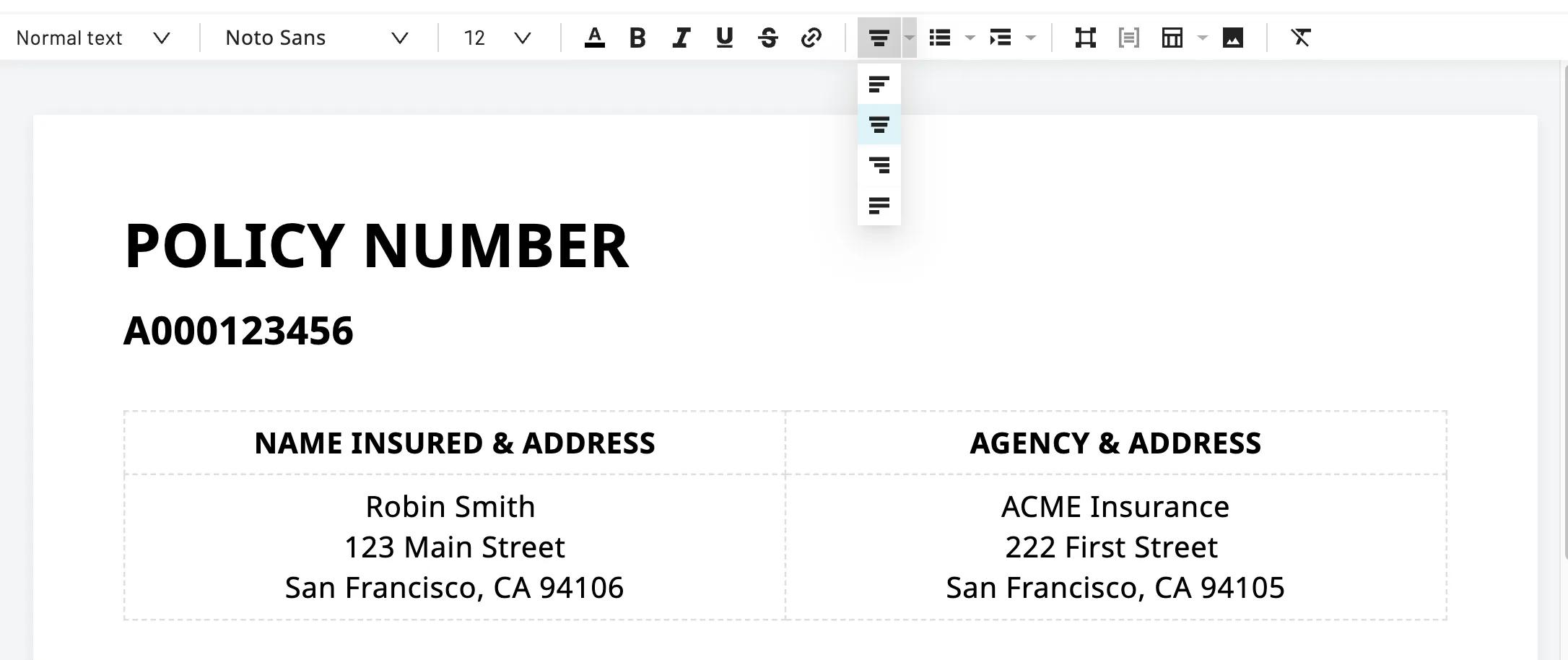 Mimic columns by using different alignment options across table cells
Fields and clauses in tables
Information inside table cells support fields and clauses normally . Highlight the relevant text then use the field and clause buttons in the toolbar to convert to fields and clauses.
For fields, you can alternatively use the @ symbol before typing relevant text. This will open a dropdown menu of existing field aliases to choose from or a button to add a new one.
If there is any information that surrounds the fields and clauses, that information remains static.
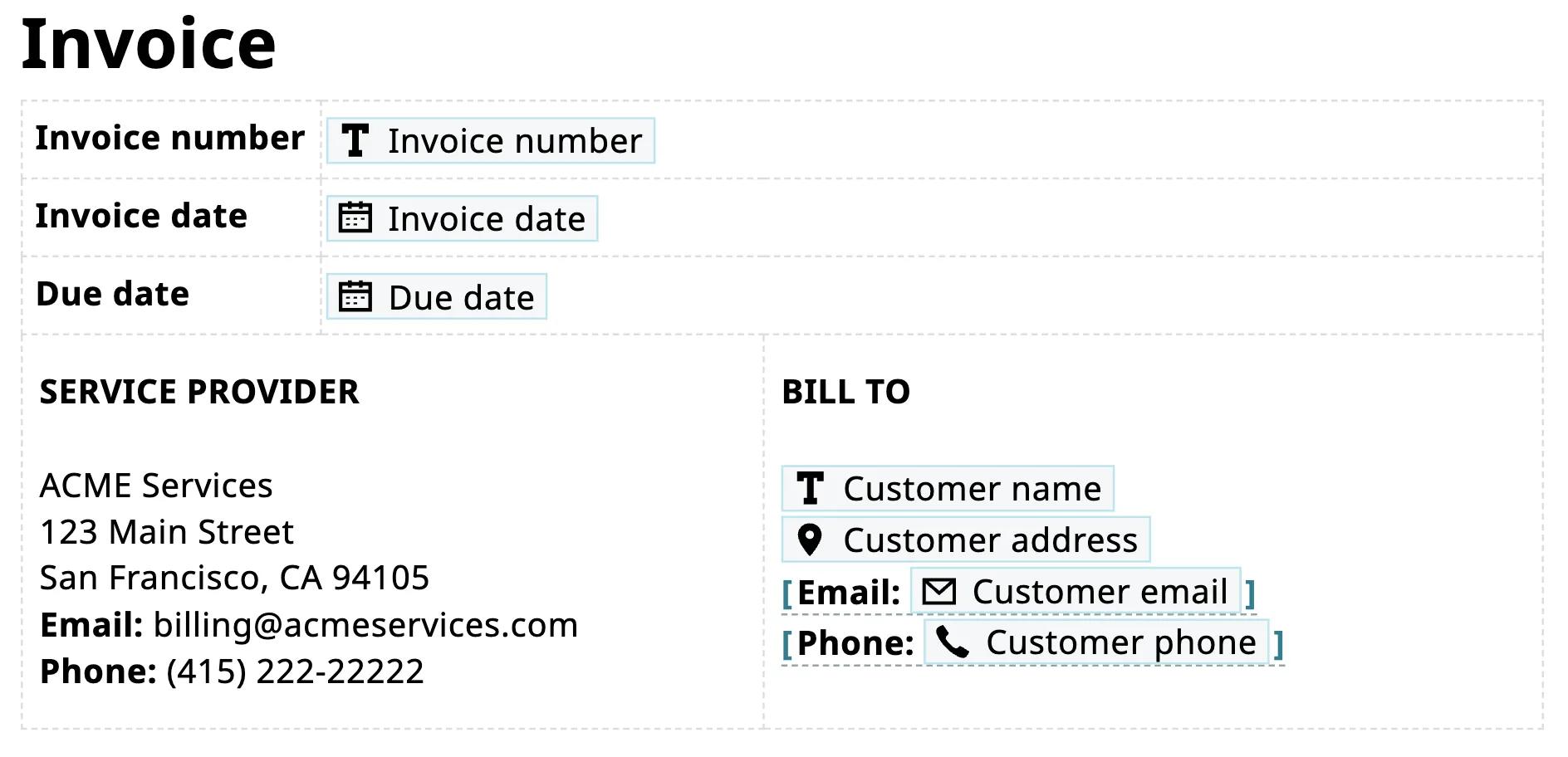 A table with fields and clauses
 The table cells will automatically adjust in size and accommodate any field information and clauses at the time the dynamic template is filled.
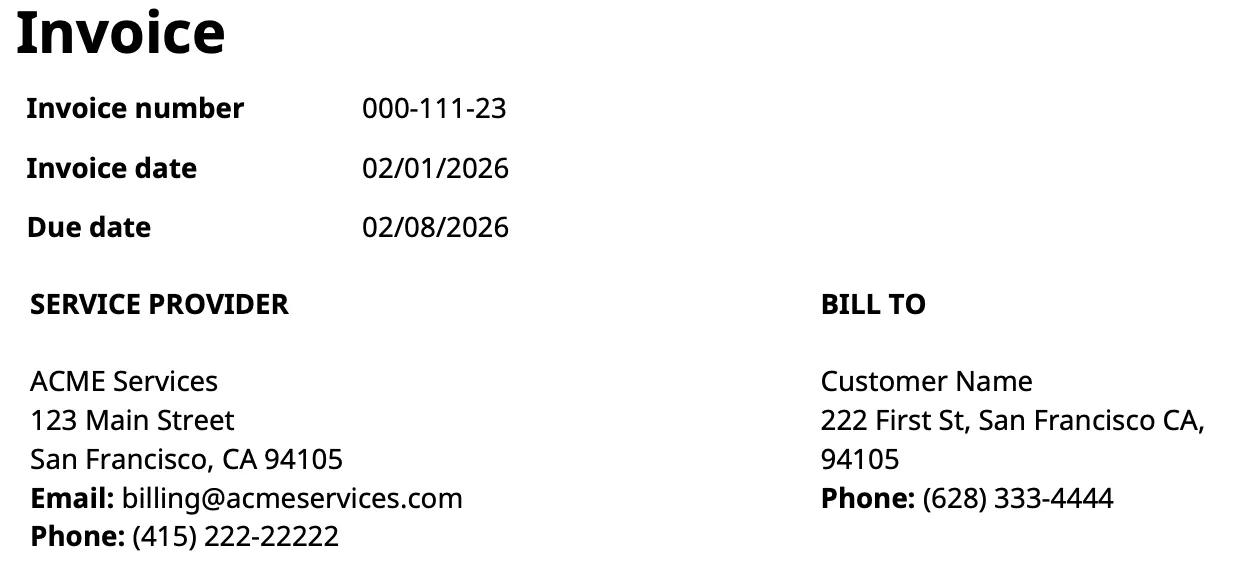 A filled table containing fields and clauses
Repeating rows
For documents like invoices where the number of rows varies across filled documents, dynamic templates support a repeating rows feature.
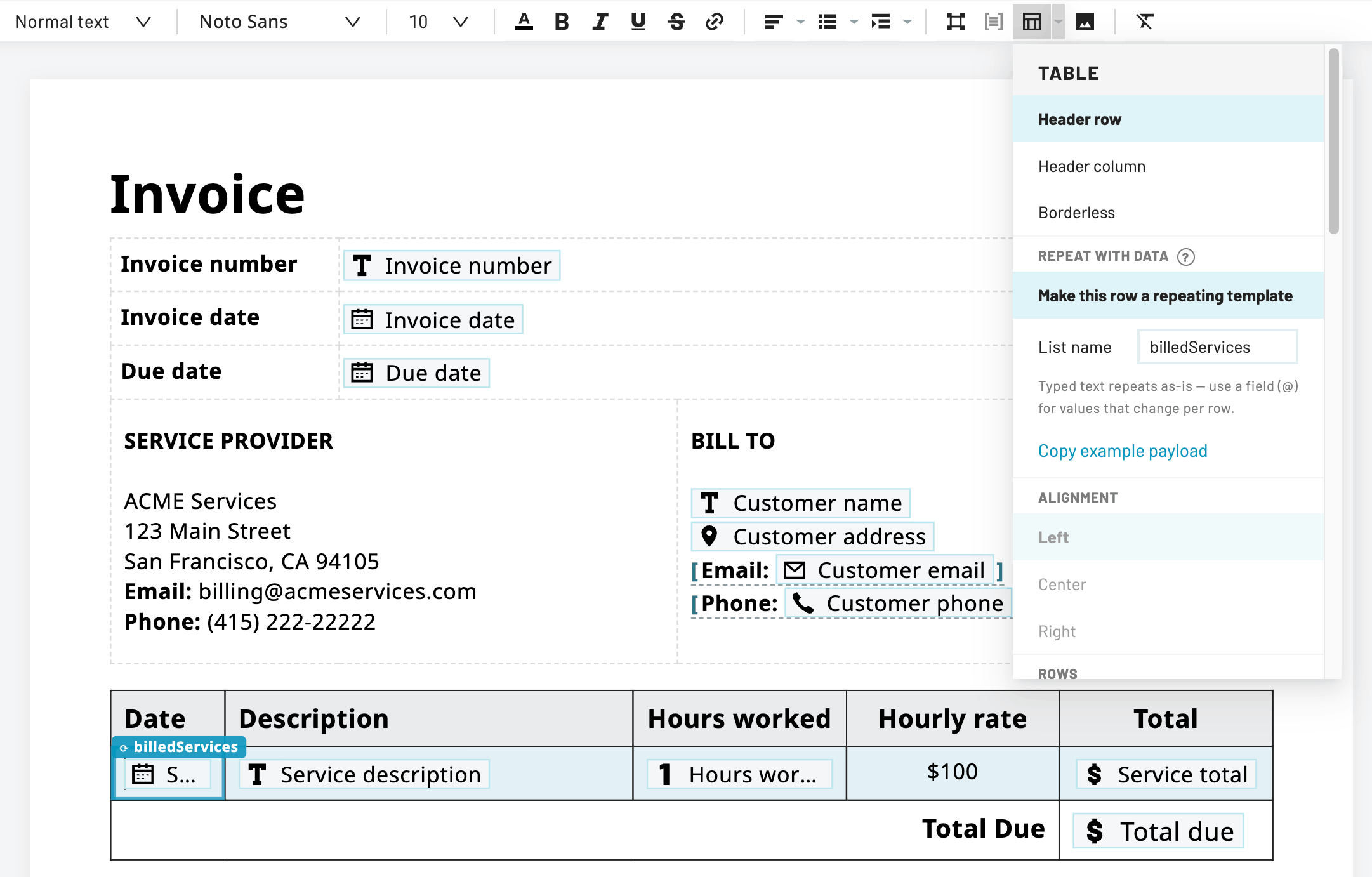
Repeating rows can be incorporated in tables alongside static rows or they can be used on their own. When added, the entire row will repeat `n` number of times depending on your filled data. The rows can contain static information, but in order to repeat the row you must add at least one field to the row in order to repeat it.
To add repeating rows:
- Hover your cursor over the relevant table row and select a cell
- Click the Table icon
- Select Make this row a repeating template
- This will apply to the entire row, not just the selected cell
- Enter a list name
- Repeating rows will be highlighted in a different color, with the row name tagged in the first row
- List names should be unique and cannot double as a fieldAlias
To delete repeating rows:
- Hover your cursor over the existing repeating row and select a cell
- Click the Table icon
- Select Make this row a repeating template
Filling repeating rows in dynamic templates
Dynamic templates are generally compatible with our PDF Fill endpoint, Etch Packet, and Workflows. However, repeating rows specifically cannot be filled through the Anvil UI and can only be filed programmatically over API. This can be done either with a PDF Fill request or as part of a createEtchPacket request.
Repeating rows are designed to be pre-filled with existing data you already have. They are not supported in Workflows nor can they be assigned as interactive fields in an Etch packet, so it’s not possible to collect new data through repeating rows.
While shared field aliases usually help you deduplicate common fields, it’s important to note that all fields within a repeated row share a parent and child relationship with that specific row. This means that they are separate from outside fields that are placed anywhere else in the document (e.g. in a paragraph, in a non-repeating cell, etc) that share the same alias.
Repeated rows that contain multiple cells and fields will be filled as a single object per row. Clauses can be included in repeating rows and will be repeated per row. However, the option to show or hide the clause will apply globally to all duplicate clauses throughout the template.
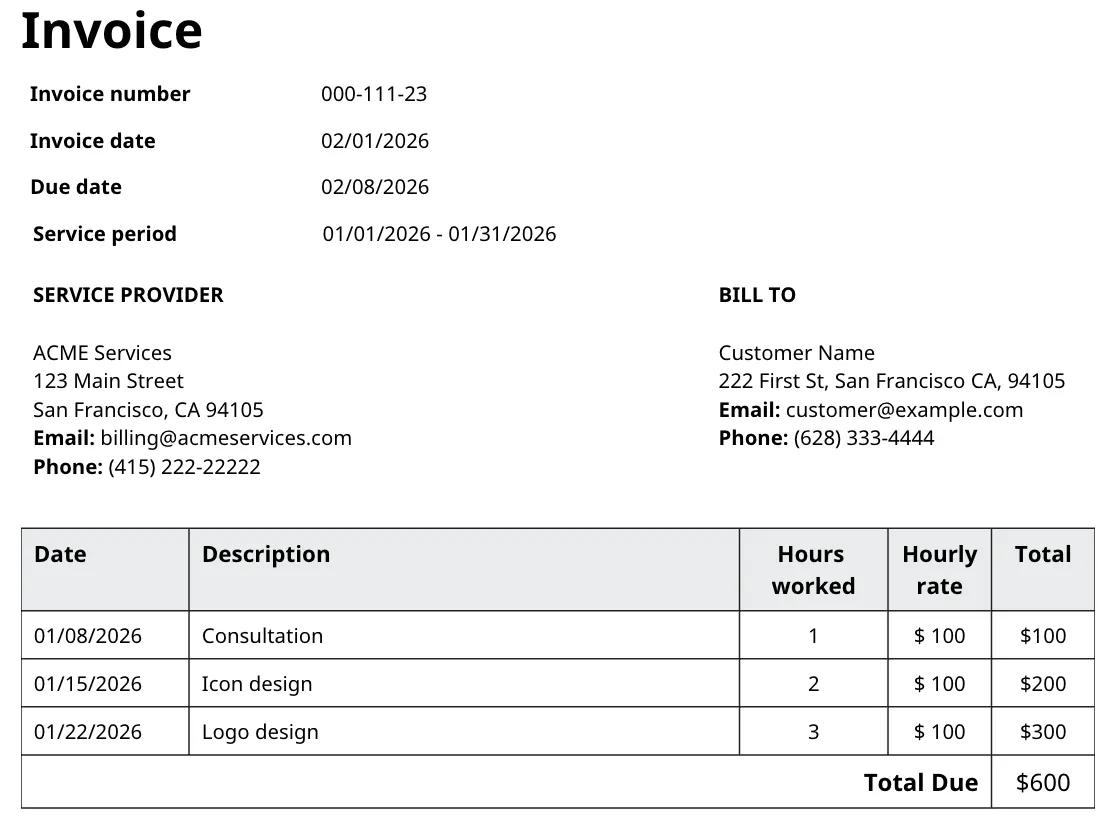
Here’s an example payload that helps illustrate how to fill dynamic templates with repeating table rows:
{
  "data": {
    // ── Document-level fields ────────────────────────────────
    // These are normal fields placed anywhere in the doc
    "invoiceNumber": "000-111-23",
    "invoiceDate":   "2026-02-01",
    "invvoiceDueDate":"2026-02-08",
    "serviceDate": "2026-01-01",
    "serviceDateEnd": "2026-01-31",
    "customerName": "Customer Name",
    "customerAddress": {
      "street1": "222 First St",
      "city": "San Francisco",
      "state": "CA",
      "zip": "94105"
    },
     "customerEmail": "customer@example.com",

    //── Clauses ───────────────────────────────────────────────
    // Clauses are applied globally across common clause aliases.
    "customerEmailProvided": true,
    "premiumRate": true,
    "standardRate": false,

    // ── Repeating ROW ────────────────────────────────────────
    // 'repeatedRow' is the List name on the table's repeating
    // row. It's an array of objects. Each object renders ONE
    // row. 3objects → 3 rows. The object keys
    // (serviceDate/serviceDescription/hourWorked/serviceTotal)
    // match the aliasIds of the fields in that row's cells.
    // Common aliaseslike serviceDate are unique to the repeatedRow
    "repeatedRow": [
      {
        "serviceDate": "2026-01-08",
        "serviceDescription": "Consultation",
        "hoursWorked": 1,
        "serviceTotal": 100
      },
      {
        "serviceDate": "2026-01-15",
        "serviceDescription": "Icon design",
        "hoursWorked": 2,
        "serviceTotal": 200
      },
      {
        "serviceDate": "2026-01-22",
        "serviceDescription": "Logo design",
        "hoursWorked": 3,
        "serviceTotal": 300
      }
    ],

    // ── Another table-level CELL ────────────────────────────
    // "totalDue" is another field in a cell outside of the
    //repeating row.
    "totalDue": 600
  }
}
Here is the resulting filled document:
 Back to Help Center