Getting started
Headers and footers can contain almost anything the body can hold. This includes things like formatted multi-line text, images and logos, tables, fields and clauses. As part of a dynamic template, headers and footers are also supported in Etch Packets, Workflows, and the PDF Fill API.
Unlike other content in a dynamic template however, it’s not possible to copy and paste headers and footers from existing documents. You will need to add headers and footers directly in Anvil’s document editor.
To add headers and footers to dynamic templates:
- Click the Header & footer option in the top toolbar
- Select Add header/ footer
- Enter relevant content in your header and/or footer
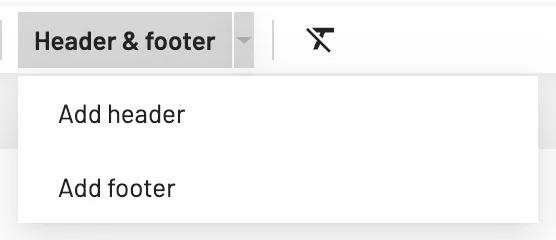 Header and footer button includes add options in a dropdown menu.
Headers and footers are separated from the body of dynamic templates with a dashed outline and are labeled accordingly. Any content within headers and footers will appear dimmed until you hover over them or select them.

Additional notes
- There’s no height control. Page margins will automatically size to fit the content of your header and footer without overlapping with the body text.
- Page breaks are not shown within the document editor so headers and footers will only show at the top or bottom of the document respectively.
- Fill the document template to see repeated headers and footers.
- Each document template supports a single header and/or footer that will be repeated on your specified pages.
Styling headers and footers
Header and footer content can be styled like any other content in the body of your template. Customize font family, size, color and alignment normally by applying the styling change before adding content or after highlighting the relevant content.
Some styling options that are unique to headers and footers are: “show on” options, page numbering, and 3 column layout.
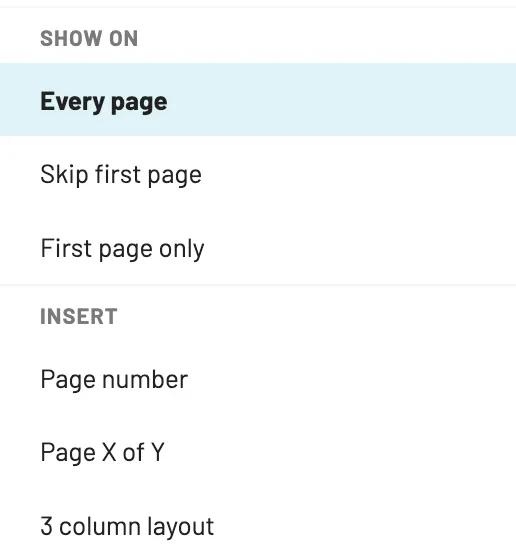
Header and footer show on options
You can customize which pages your headers and/or footers will show on and this setting can be customized separately for the header and footer. There are a few options:
- Show on every page (default): Adds the header and/or footer to every page
- Skip first page: excludes the header and/or footer from the first page. This is helpful if your first page is a cover page.
- Note that page numbering is inclusive of the first page, even if you exclude headers and/or footers from the first page.
- First page only: only includes the header and/or footer on the first page. This is helpful for documents with letterheads.
Page numbering
Page numbering is only supported in headers and footers and cannot be added to the normal body of a dynamic template. Page numbering is determined at the time your document is filled and automatically adjusts based on the final length of your filled document. Page numbering also supports different styling options which apply to all page numbers across headers and footers.
There are two types of page numbers supported in headers and footers:
- Page number: inserts the relevant page number.
- Note that page numbering is inclusive of the first page, even if you exclude headers and/or footers from the first page.
- Page X of Y: inserts the page number of total. Several different numbering options are available to choose from.
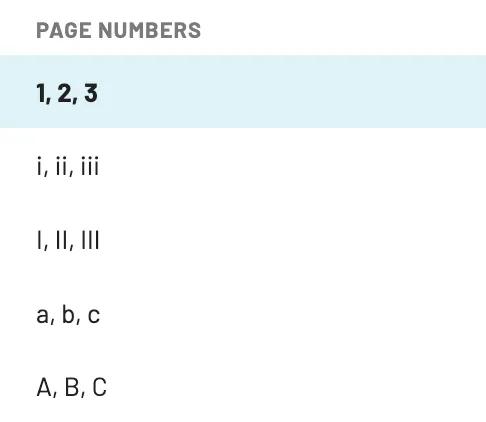 Page number styling options
Page numbers can be used on their own or be surrounded by additional text. They can also be used within the 3 column layout.
3 column layout
The 3 column layout inserts a full width table row with no borders into your header and/or footer. It’s helpful if you want to add different alignment options to content in a single row.
The 3 columns support standard content including text, images, fields and clauses. They can be used on their own within headers and footers or can also be included in the context of a larger body of text.

If you need more than 3 columns, you can also add a table to your header. The 3 column layout is just a quick way to easily add a commonly used header and footer layout.
Fields and clauses in headers and footers
Fields and clauses are also supported in headers and footers and can be added normally. If there are common field and/or clause aliases that are shared across header, footer, and body content, they will be filled with the same data or information.
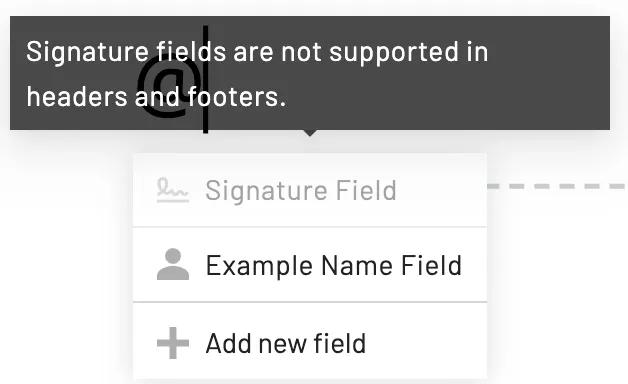
While you can add most field types to headers and footers, fields in headers and footers cannot be assigned to end users to fill out or interact with. Due to this, signature type fields such as signature, initials, and signature date fields are not supported.
Additional notes
A header or footer that is empty after filling is omitted from the resulting PDF. For example, if a header or footer only holds an unfilled field or a hidden clause.
If you assign an interactive field contained in the header or footer to a signer when creating an Etch packet, the interactive field will automatically be dropped from the header and footer when the packet is sent. You can however still pre-fill fields in headers and footers before the packet is sent out. Any pre-filled text will show up in plain, non-editable text in the document.
Images in headers and footers
Images can be added to headers and footers and are repeated on specified pages normally. This is especially helpful if you need to add a logo to multiple pages of your document.
You can also include images as part of a 3 column layout or standard table if you need to align different parts of a single line’s content differently.
 A header containing three columns with a logo
If images like logos in your header and footer are conditional, wrap the image as part of a clause to enable/disable it as needed.
Back to Help Center