Anvil MCP
Before you get into MCP, make sure you check out our getting started guide.
Anvil's remote Model Context Protocol (MCP) server lets AI assistants and agents work directly with your Anvil account. Once connected, your AI client can fill PDF templates, generate PDFs from HTML or Markdown, and query or mutate your account's data through Anvil's GraphQL API — all from a natural-language prompt.
Because it's a remote MCP server, there's nothing to install or run locally. You point your AI client at a single URL, sign in with your Anvil account, and you're ready to go. The server is hosted by Anvil at:
https://mcp.useanvil.com
The server speaks the streamable HTTP transport and authenticates with OAuth, so it works with any MCP-compatible client — from coding tools like Claude Code, Cursor, and VS Code, to general-purpose assistants like Claude and ChatGPT.
What you can do
The Anvil MCP server exposes the following tools to your AI client:
| Tool | What it does | Key inputs |
|---|---|---|
fill_pdf | Fill a PDF template (Cast) with data and return a download URL. | castEid, data |
generate_pdf | Generate a new PDF from HTML/CSS or Markdown and return a download URL. | data (content) |
graphql_schema | Fetch the Anvil GraphQL schema so the assistant knows what it can query. | — |
graphql_query | Run a query or mutation to read and manage your account data (Workflows, Casts, Weld data, e-sign packets, and more). | query, variables |
list_organizations | List the organizations your Anvil user belongs to and report which one is active. | — |
select_organization | Set the default organization that requests run against. | organizationEid |
Your assistant decides which tools to call from your prompt — you don't invoke them directly. With these, you can ask things like:
- "Fill the NDA template with these party names and send me the link."
- "Generate a one-page invoice PDF from this Markdown."
- "How many Workflow submissions did we get last week?"
- "List the Casts in my organization."
Requirements
- An Anvil account. The MCP server acts on behalf of your signed-in user, so the tools can do anything your user can do in the app.
- An MCP-compatible client (see the per-client instructions below).
- A payment method on your organization for billable actions. MCP requests run as production requests, so PDF fills, PDF generations, and GraphQL mutations require a credit card on file — without one they fail with a
Payment method requirederror. Read-only queries (listing organizations, browsing your Workflows and templates, and othergraphql_queryreads) work without a payment method.
Unlike Anvil's REST and GraphQL APIs, the MCP server does not use an API key. Authentication happens through OAuth in your browser — see below.
MCP vs. the API: Use the MCP server for interactive, conversational work — letting an AI assistant act on your behalf as your signed-in user. Use the REST and GraphQL APIs directly when you're building programmatic, server-to-server integrations authenticated with an API key. Both reach the same Anvil capabilities.
Authentication
The Anvil MCP server uses OAuth 2.0. The first time your client connects, it will open a browser window asking you to sign in to Anvil and authorize the connection. After you approve, the client stores the credentials and reconnects automatically on future sessions.
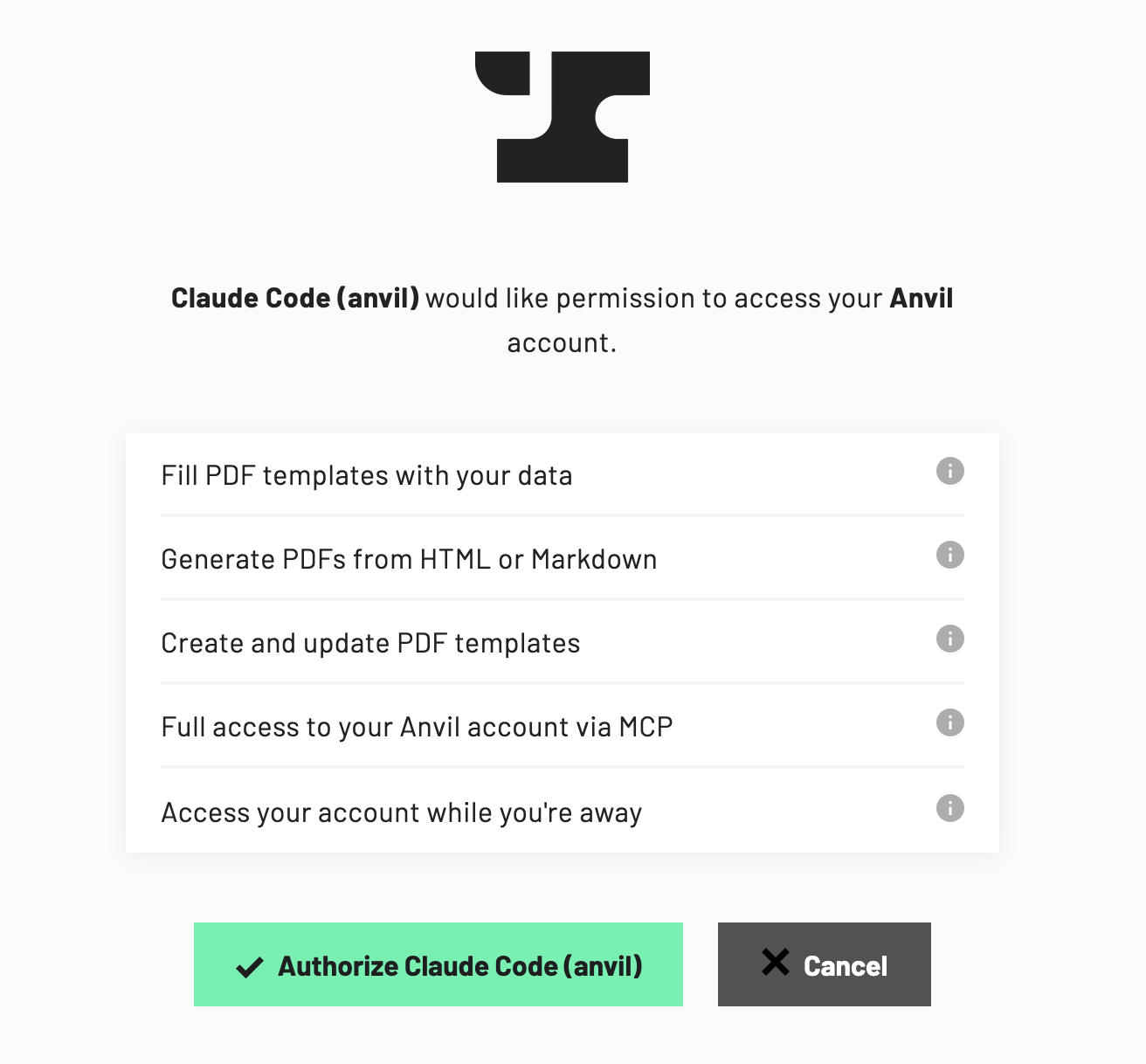 Authorizing the Anvil MCP connection
You never paste an API key or secret into your client config — the only value you need is the server URL, https://mcp.useanvil.com.
If your client supports remote MCP servers natively, OAuth is handled for you. Some older clients only support locally-run servers; for those, see Other clients for the mcp-remote bridge, which performs the OAuth handshake on the client's behalf.
Choosing an organization
Every Anvil request runs against a single organization. The MCP server resolves the active organization automatically:
- If your client pins the
x-organization-eidheader (see Switching organizations), that organization is used. - Otherwise, your saved default (set via the
select_organizationtool, or as Preferred Organization in your Anvil user settings) is used. - If you belong to only one organization, that one is used.
When you have multiple organizations and haven't chosen one, your assistant will ask which to use, then remember your choice. You can just say "switch to my Acme organization" at any time.
Installation
Connecting is the same everywhere: register the server URL https://mcp.useanvil.com with your client, then complete the OAuth sign-in when prompted. Most clients use a JSON config block shaped like this:
{
  "mcpServers": {
    "anvil": {
      "url": "https://mcp.useanvil.com"
    }
  }
}
The exact field names and file locations differ by client. Find yours below.
Claude Code
Add the server with the claude mcp command:
claude mcp add --transport http anvil https://mcp.useanvil.com
Then run /mcp inside Claude Code and choose Authenticate next to anvil to complete the OAuth sign-in. Once authenticated, ask Claude to use Anvil and it will call the tools as needed.
Claude Desktop & claude.ai
Anvil is added as a custom connector in the Claude apps (claude.ai on the web and the Claude desktop app). Custom connectors are available on Claude Pro, Max, Team, and Enterprise plans.
- Open Settings → Connectors.
- Click Add custom connector.
- Enter a name (e.g.
Anvil) and the URLhttps://mcp.useanvil.com. - Click Add, then Connect and sign in to Anvil when prompted.
The Anvil tools will then be available in any chat.
ChatGPT
ChatGPT supports remote MCP servers through connectors (developer mode / custom connectors, availability depends on your ChatGPT plan).
- Open Settings → Connectors.
- Choose Create / Add custom connector.
- Enter a name (e.g.
Anvil) and the MCP server URLhttps://mcp.useanvil.com. - Save, then authorize the connection by signing in to Anvil.
Enable the Anvil connector in a conversation to let ChatGPT call the tools.
Cursor
Add the server to your Cursor MCP config at ~/.cursor/mcp.json (global) or .cursor/mcp.json (per-project):
{
  "mcpServers": {
    "anvil": {
      "url": "https://mcp.useanvil.com"
    }
  }
}
Open Cursor Settings → MCP to confirm the server is connected, then complete the browser sign-in when prompted.
VS Code (GitHub Copilot)
With MCP support in GitHub Copilot, add the server to a .vscode/mcp.json file in your workspace:
{
  "servers": {
    "anvil": {
      "type": "http",
      "url": "https://mcp.useanvil.com"
    }
  }
}
Or add it from the command line:
code --add-mcp '{"name":"anvil","type":"http","url":"https://mcp.useanvil.com"}'
Start the server from the mcp.json editor (or the MCP: List Servers command) and sign in to Anvil when prompted. The tools then appear in Copilot Chat's agent mode.
Windsurf
Add the server to your Windsurf MCP config at ~/.codeium/windsurf/mcp_config.json. Windsurf uses serverUrl for remote servers:
{
  "mcpServers": {
    "anvil": {
      "serverUrl": "https://mcp.useanvil.com"
    }
  }
}
Reload the server list from Windsurf Settings → Cascade → MCP Servers, then authorize the connection in your browser.
Cline
In Cline, open the MCP Servers panel → Configure MCP Servers and add Anvil as a remote server:
{
  "mcpServers": {
    "anvil": {
      "type": "streamableHttp",
      "url": "https://mcp.useanvil.com"
    }
  }
}
Save the config and complete the OAuth sign-in when Cline opens your browser.
Zed
Zed runs MCP servers (context servers) as local commands, so use the mcp-remote bridge to connect to the remote Anvil server. Add the following to your Zed settings.json:
{
  "context_servers": {
    "anvil": {
      "command": {
        "path": "npx",
        "args": ["-y", "mcp-remote", "https://mcp.useanvil.com"]
      }
    }
  }
}
The first run opens a browser window for the Anvil OAuth sign-in.
Other clients
The Anvil MCP server works with any MCP-compatible client. If your client supports remote servers, point it at https://mcp.useanvil.com using whatever field it provides for a server URL.
If your client only supports local (stdio) servers, use the mcp-remote bridge, which runs locally and proxies to the remote server (handling OAuth for you):
{
  "mcpServers": {
    "anvil": {
      "command": "npx",
      "args": ["-y", "mcp-remote", "https://mcp.useanvil.com"]
    }
  }
}
This requires Node.js to be installed so npx is available.
Verify your connection
After connecting and signing in, confirm everything works by asking your assistant a simple, read-only question:
> List my Anvil organizations.
If the assistant calls list_organizations and reports your account and organizations back, you're connected and ready to go. If nothing happens or you're prompted to sign in again, see Revoking access to reset the connection, then re-add the server.
Switching organizations
If you belong to multiple Anvil organizations, you can change which one is active in two ways:
- For all clients (saved default): ask your assistant to switch organizations, or have it call the
select_organizationtool. This saves your choice on your Anvil account and applies it everywhere. To clear the saved default, ask your assistant to clear it (select_organizationaccepts anullvalue). - In the Anvil app: set Preferred Organization in your user settings. This edits the same saved default as
select_organization— the card appears once you belong to more than one organization. - For a single client (header override): pin the
x-organization-eidheader in that client's config. This overrides the saved default for that client only. Most clients that support custom headers accept aheadersobject:
{
  "mcpServers": {
    "anvil": {
      "url": "https://mcp.useanvil.com",
      "headers": {
        "x-organization-eid": "YOUR_ORGANIZATION_EID"
      }
    }
  }
}
You can find an organization's EID by asking your assistant to list your organizations (the list_organizations tool), or from the Anvil GraphQL API.
A worked example
Once the server is connected, you drive everything in natural language — your assistant figures out which tools to call. Here's a typical first session:
- Ask for what you want. For example:
> Fill my "Mutual NDA" template — the disclosing party is Anvil and the receiving party is Acme Inc., effective today. Give me a link to the finished PDF.
-
The assistant resolves your account. It calls
list_organizationsto confirm which organization to work in (asking you to choose only if you belong to several), thengraphql_queryto find the "Mutual NDA" template (Cast) and the fields it expects. -
The assistant fills the PDF. It calls
fill_pdfwith the template'scastEidand your data, and gets back a signed download URL.
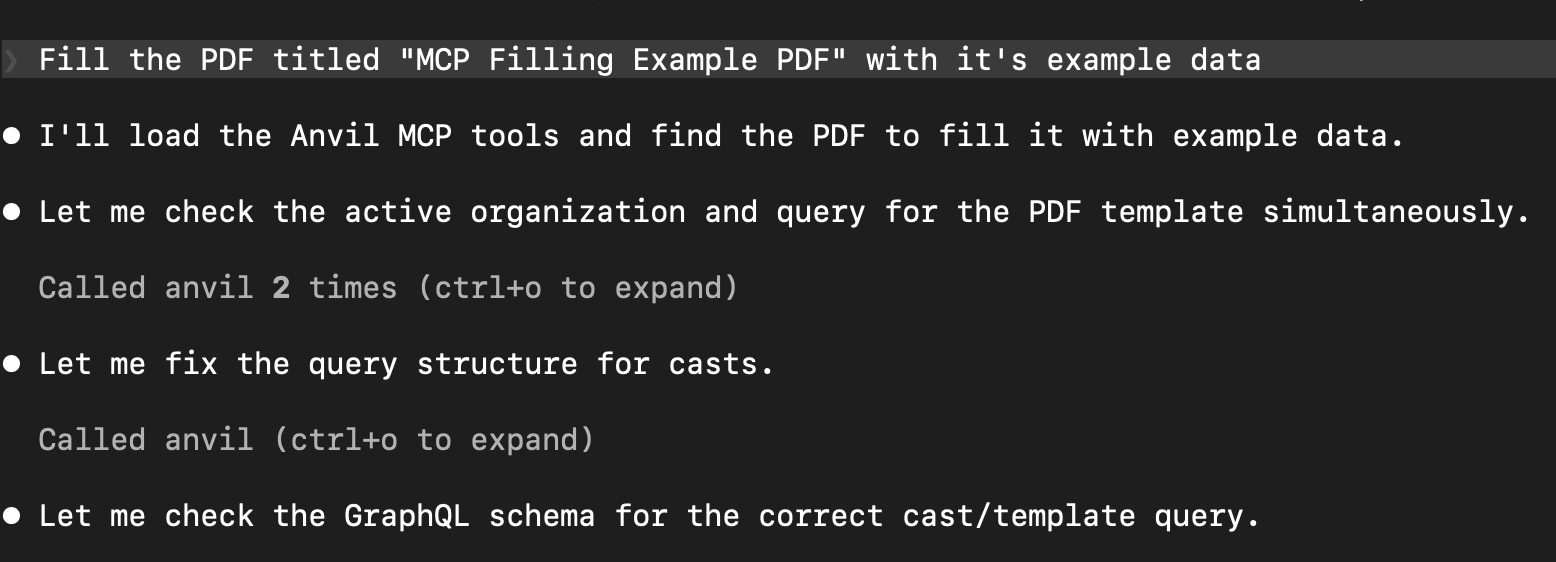 An assistant filling a PDF through the fill_pdf tool
- You get your document. The assistant shares the link — open it to download the filled NDA before it expires.
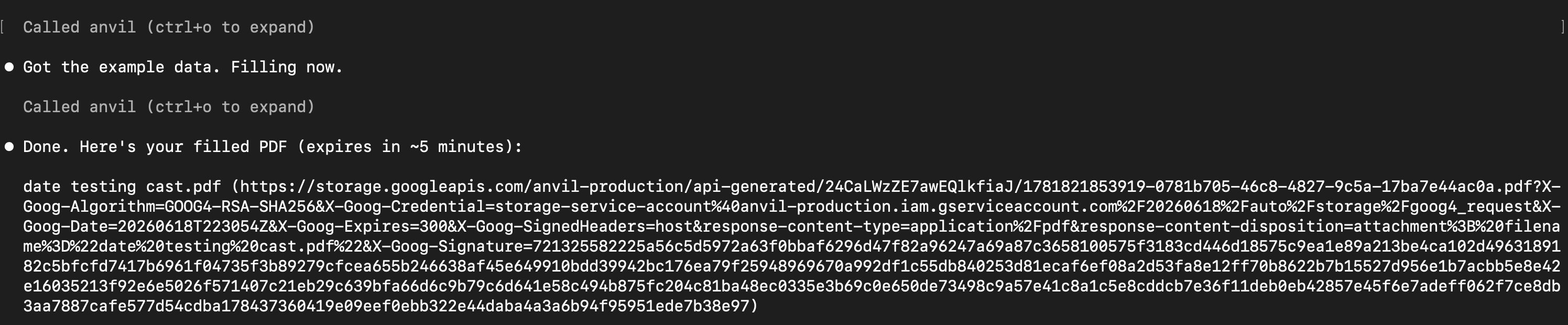 The finished PDF URL
The same pattern works for generating PDFs from Markdown/HTML (generate_pdf) or answering questions about your account data (graphql_query) — just ask.
Working with the results
The fill_pdf and generate_pdf tools return a signed, time-limited URL to the finished PDF rather than the file bytes. The link is valid for about 5 minutes (the tool result includes the exact expiresAt timestamp). Your assistant will share the link with you — open it to download the document before it expires. If a link has expired, just ask your assistant to run the fill or generation again.
Because the MCP server acts as your signed-in user (not a development API key), PDF fills and generations run as real, production requests that count against your account — there is no watermarked development mode for PDFs over MCP today.
Test mode
Some actions support a free test mode that behaves normally but produces watermarked, non-billable results. This currently applies to GraphQL mutations that accept an isTest argument — most notably creating Etch e-sign packets with createEtchPacket.
Just tell your assistant you want to test, e.g.:
> Create a test e-sign packet for this NDA so I can check the signer setup.
The assistant will set isTest: true on the mutation. Test packets are free and watermarked with a demo indicator, but otherwise behave like the real thing. For anything real, the assistant defaults to a normal (billable) request — if it's ever unsure, it will ask first.
Rate & plan limits
MCP traffic is rate limited to roughly 4 requests per second per user. Beyond that, requests fail with a 429 error ("Rate limit exceeded, retry in …") — your assistant should wait a moment and retry.
PDF fills and generations are billed the same as API requests. After any bulk pre-purchases, they are billed at the retail rate of $0.10 per PDF API call.
Security & access
The MCP server acts on behalf of your signed-in Anvil user. There's no scoped API key — once you authorize a client, it can do anything your user can do in the organizations you belong to, including reading account data and filling or generating PDFs. Only connect clients you trust, and be mindful that anything you tell the assistant may be sent to that client's model provider.
The consent screen spells this out: authorizing a client grants it "Full access to your Anvil account via MCP" and "Access your account while you're away" (the client can stay connected and refresh its access between sessions, rather than asking you to sign in every time).
A few good practices:
- Connect the right account. Sign in with the Anvil user whose access you intend the assistant to have.
- Watch your organization. Confirm the active organization (the assistant reports it via
list_organizations) before running actions, especially if you belong to several. - Review actions. Many clients let you approve tool calls before they run — keep that on if you want a chance to review fills and queries.
Revoking access
To stop a client from using Anvil, remove the server from that client:
- Claude Code:
claude mcp remove anvil - JSON-configured clients (Cursor, VS Code, Windsurf, Cline, Zed, etc.): delete the
anvilentry from the client's MCP config. - Connector-based clients (Claude, ChatGPT): remove the Anvil connector in the app's connector settings.
mcp-remoteusers: also clear the cached OAuth credentials in~/.mcp-authto force a fresh sign-in next time.
Troubleshooting
Common errors your assistant may report back, and how to fix them:
"Anvil MCP could not determine which organization to use."
You belong to multiple organizations and haven't chosen a default. Ask your assistant to list your organizations and pick one (it will save your choice via select_organization), set Preferred Organization in your user settings, or pin the x-organization-eid header in your client config — see Choosing an organization.
"You are not a member of the selected organization in Anvil MCP."
Your saved default (or a pinned x-organization-eid header) points at an organization you no longer belong to. Ask your assistant to switch to another organization, or remove the stale header from your client config.
"Payment method required. Add a credit card to your account to make production API requests." You asked for a billable action (a PDF fill or generation, or a GraphQL mutation) but your organization has no payment method on file. Add a card in your organization's billing settings — read-only queries keep working without one.
"Rate limit exceeded, retry in …" You've hit the ~4 requests/second limit. Your assistant should wait a moment and retry — see Rate & plan limits.
Every request fails with insufficient_scope.
The client authorized without requesting any permissions (this could happen with connections made against older versions of the server). Remove the server from your client, re-add it, and complete the OAuth sign-in again — mcp-remote users should also clear ~/.mcp-auth first. See Revoking access.
Need help?
If you run into trouble connecting or have questions about the available tools, reach out at support@useanvil.com.